

As a software engineer, I’ve learned that the right vs code extensions can really boost my productivity. With so many extensions out there, picking the right ones can be tough. The right extensions can make your workflow smoother, cut down on switching between tasks, and let you focus on writing great code. You can learn more about the best vs code extensions for coding tasks.
I’ve tried many top vs code extensions and I’m excited to share my favorites with you. These extensions help with everything from formatting code to managing versions. Whether you’re an experienced developer or just starting, the right extensions can change your workflow for the better.
Introduction to My Favorite Extensions
In this article, I’ll share my favorite vs code extensions that have made coding better for me. We’ll cover topics like code formatting and collaboration tools. I’ll give you a list of essential extensions to boost your productivity.
Key Takeaways
- Using the right vs code extensions can boost your productivity and streamline your workflow
- Top vs code extensions can help with code formatting, version control, and collaboration
- Best vs code extensions can be found by exploring the VS Code extension community
- Using extensions like Prettier and GitLens can improve your coding experience
- Learning keyboard shortcuts can significantly improve efficiency
- Using integrated terminal and code snippets can enhance your workflow
- Exploring the VS Code extension community can help you find the right extensions for your needs
Introduction to VS Code Extensions
As a developer, I’ve found that using popular vs code extensions greatly enhances my workflow. They let me customize my environment, so I can focus on coding. This is where must-have vs code extensions come in, offering essential features that make my development smoother.
Using vscode plugins expands the features and tools in VSCode, cutting down on context switching. Having all tools in one place makes me work more efficiently and effectively. Extensions for code formatting, debugging, and version control are especially useful.
Choosing the right extensions can be a challenge. There are many options, like live preview, code snippets, and git integration. By picking the right mix, I can tailor my environment to fit my needs and boost my productivity.
My Top Productivity Extensions
As a software engineer, I’ve tried many extensions to boost my productivity. I narrowed it down to my top picks after testing over 40. These extensions have changed the game for me. They can do the same for you, making your work with vscode addons more efficient.
Using vs code tools has greatly improved my workflow. For example, the Live Server extension lets me see changes instantly. It’s easy to find and install from the vscode extensions marketplace. Prettier is another must-have for automating code formatting, keeping everything consistent and saving time.
GitLens is another top choice for me. It offers insights into Git version control. You can find it in the vscode extensions marketplace. It helps with code understanding and managing versions. These tools have streamlined my work, allowing me to focus on quality code.
Some of my favorite extensions include:
- Live Server for instant previews
- Prettier for automated code formatting
- GitLens for version control insights
Enhancing Code Quality with Extensions
As a developer, I’ve found that the right vs code extensions make a big difference. They keep all tools in one spot, reducing the need to switch between them. This saves time and boosts productivity. Using top vs code extensions helps me write better code, which is key for any software engineer.
Some top extensions for better code quality include those that find errors, make code easier to read, and follow industry standards. ESLint, for example, is used by over 1 million developers to keep code standards high and catch bugs. SonarLint also offers real-time feedback, cutting down code issues by up to 50% during development.
Other great extensions are Code Spell Checker and Prettier. Code Spell Checker cuts down typos by about 30%. Prettier, used in over 50% of teams, keeps code styling consistent. These tools help make code better, more maintainable, and efficient. Key benefits include:
- Improved code readability
- Reduced errors and bugs
- Increased productivity
- Enhanced collaboration
Adding these top vs code extensions to my workflow has greatly improved my coding. Whether you’re new or experienced, exploring vs code extensions can elevate your coding skills.
Customizing the User Interface
Customizing VS Code’s user interface is easy with the right extensions. You can make your environment fit your needs and style. Start by checking out vscode plugins for unique looks.
For instance, the Material Icon Theme can give VS Code a modern feel. It has more icons than the default ones. You can also use custom CSS and JS for a personal touch.
Here are more ways to customize:
- Using icon packs for more visual appeal
- Creating custom themes to match your brand or style
- Utilizing vscode plugins to add new features and functionality
Customizing VS Code makes it more fun and efficient. With the right extensions, you can create a workspace that’s just right for you.
Debugging Made Easier
Debugging is key in coding, and the right tools are crucial. vscode addons and vs code tools make debugging smoother. The vscode extensions marketplace has many extensions for debugging, like error highlighting and logpoints.
VS Code offers great debugging features. You can set breakpoints, check variables, and see call stacks. The Debugger for Chrome lets you debug web apps in the browser. The Python Debugger is great for Python apps.
The vscode extensions marketplace also has tools like logpoints. These let developers log messages without stopping. With the right vscode addons and vs code tools, debugging is faster and more accurate.
Improving Collaboration and Code Sharing
As a developer, I’ve learned that teamwork and sharing code are key to finishing projects fast. The right tools, like top vs code extensions, help teams work together smoothly, no matter where they are. Live Share is a standout extension for this, allowing real-time collaboration and letting many developers work on the same code at once.
With Live Share, everyone sees changes right away, making editing together easy. It also has built-in chat for talking without switching apps. Plus, it lets you share local servers, so everyone can see and play with running apps live.
Polacode is another great tool for sharing code. It helps create stunning code snippets. This is super handy for showing off code examples or explaining coding ideas. Using these extensions, teams can work better together, leading to faster and more successful projects.

Using Live Share and other top vs code extensions brings many benefits for teamwork and code sharing:
- Real-time collaboration and synchronous editing
- Improved communication through audio and text chat features
- Ability to share localhost servers and interact with running applications
- Enhanced code sharing and demonstration capabilities
By adding these best vs code extensions to their workflow, developers can make teamwork and code sharing easier. This leads to faster and more successful project completion.
Boosting Development Efficiency
As a developer, I’m always searching for ways to make my work easier and faster. Using popular vs code extensions helps a lot. They make tasks like code completion, debugging, and project management easier. Extensions like Snippet Generator and Todo Tree are must-haves for boosting efficiency.
For example, experienced developers use vscode plugins like Tabnine. This AI code assistant gives real-time code completions. It makes coding better and saves time.
Using these extensions brings many benefits. They include:
- Improved code consistency and readability
- Enhanced productivity through automated tasks
- Streamlined project management and collaboration
By adding these extensions to their workflow, developers can improve their skills. They can then deliver high-quality projects more efficiently. With the right tools and practice, anyone can become a proficient developer.
Managing Project Dependencies
As a developer, managing project dependencies is key for a smooth workflow. vscode addons offer tools to make this easier. The vscode extensions marketplace has many extensions for this, like npm Intellisense and Path Intellisense.
These extensions help a lot with code completion and navigation. Path Intellisense makes it easy to find files and folders. npm Intellisense helps with Node.js projects, cutting down errors and saving time.
Some main features of these extensions are:
- Improved code completion and navigation
- Enhanced project dependency management
- Streamlined workflow with vs code tools
Using these vscode addons and checking out the vscode extensions marketplace has really helped me. It’s made managing project dependencies easy. Now, I can focus more on writing great code.
Learning and Documentation Tools
As a developer, I know how important learning and documentation are. Vs code extensions help me get better at coding and create top-notch documentation. Markdown All in One and Quokka.js are the best for this.
These extensions offer live feedback, code completion, and refactoring. For instance, Quokka.js helps with JavaScript/TypeScript by logging and checking code coverage. Markdown All in One lets me write and see markdown documents right in VS Code, making documentation easier.
Other great extensions for learning and documentation include:
- IntelliCode: gives AI-powered code completion and refactoring
- Tabnine: boosts coding efficiency with machine learning
- Dendron: uses a markdown structure for documentation, working with Git
Using these extensions, I can enhance my coding and documentation skills. They’re invaluable whether I’m on a solo project or working with a team. These tools keep me organized and focused on writing clean, efficient code.
Working with APIs and JSON
As a developer, I’ve learned that APIs and JSON are key in software development. I use the REST Client extension in VSCode to send HTTP requests and see responses. This extension is a must-have because it lets me work without switching to tools like Postman or cURL.
Formatting JSON data is crucial when working with APIs. The JSON Formatter extension helps me do this. It formats JSON documents with a shortcut and lets me quickly find properties in big JSON files.
Some key features of the REST Client extension include:
- Support for multiple request methods (GET, POST, PUT, DELETE, etc.)
- Ability to send requests with custom headers and query parameters
- Response preview with syntax highlighting for JSON, XML, and other formats
Using these vscode plugins makes working with APIs and JSON easier. It helps me work more efficiently and boosts my productivity.
Version Control and Git Integration
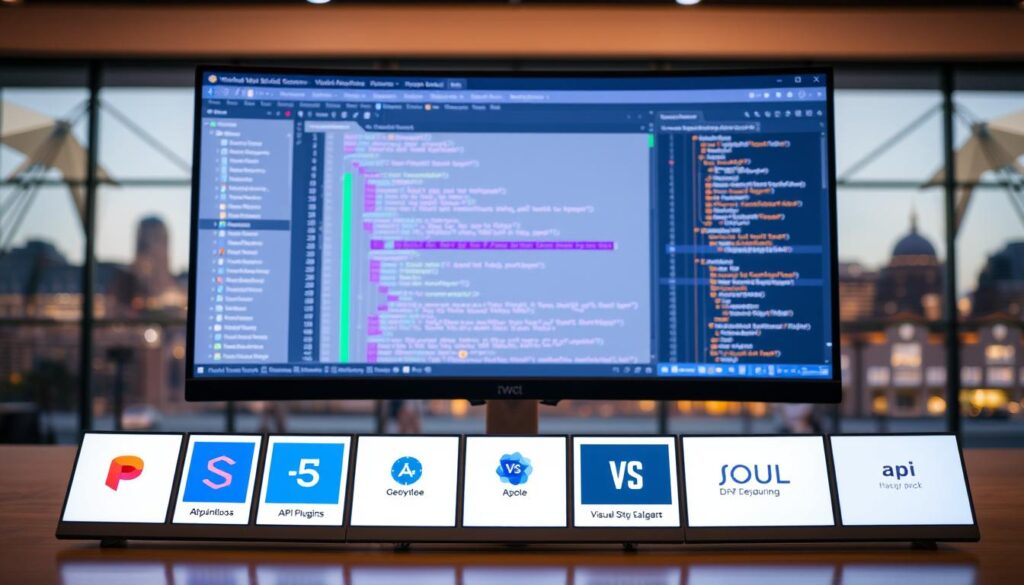
As a developer, I use version control systems to manage my code. Visual Studio Code (VS Code) has built-in support for source control and Git. This makes it a top choice for developers. Thanks to vscode addons, my workflow is better and I’m more productive.
The vscode extensions marketplace has many tools, like Git Graph and GitHub Pull Requests. These help me see commits and handle pull requests. With GitLens, a powerful Git tool, I get a deeper connection with VS Code. This enhances my version control experience.
Using version control systems has many benefits:
- It reduces the risk of losing code.
- It makes teamwork more efficient.
- It makes debugging easier.
To make the most of version control and Git integration, I suggest checking out the vscode extensions. The right tools and extensions can make a developer’s life easier. They help reduce mistakes and boost productivity.
Advanced Editing Features
As a developer, I’ve found that advanced editing features can greatly enhance my workflow. The right vs code extensions let me edit multiple lines at once. I can also perform powerful find operations and streamline my workflow.
One of the most powerful features is multi-cursor editing. It lets me edit multiple lines of code at once. I can activate it using Alt+Click, shift+Ctrl+Alt+Up/Down, or Ctrl+D. This makes it easy to select and edit multiple lines of code.
Another advanced feature is regex search. It allows me to search for specific patterns in my code and replace them. This is very useful when working with large codebases. It helps me quickly find and replace specific patterns of code.
Some of the best vs code extensions offer multi-cursor editing and regex search. These extensions help me work more efficiently and effectively. They make it easier to manage complex codebases.
By using these extensions, I can take my coding to the next level. I can edit multiple lines of code at once and perform powerful find operations. This streamlines my workflow and makes managing complex codebases easier.
Performance and Resource Management
As a developer, I know how key it is to manage performance and resources well. Popular vs code extensions help me do this, making my workflow smoother. Code Time is a must-have for this, giving me insights into my coding habits and where I can get better.
Pylance is another vital extension for managing resources, especially for Python. It helps me optimize performance, saving time on debugging. For example, Import Cost lets me choose packages wisely, cutting down bundle size by 10-20%.
Using these extensions brings many benefits, such as:
- Improved coding efficiency
- Enhanced productivity
- Better resource management
- Reduced debugging time
By adding these extensions to my workflow, I get to enjoy their advantages. For more on optimizing your workflow, check out the VS Code Marketplace or reach out to us at our website.
With the right mix of extensions, I can tailor my workflow to fit my needs. This lets me focus on writing great code and achieving top results.
Security and Code Safety
As a developer, keeping my code safe is crucial. vscode addons and vs code tools help a lot. The Visual Studio Code Marketplace has many extensions for code protection.
Snyk is one such extension. It scans for vulnerabilities and offers security insights.
Choosing the right vscode addons and vs code tools is key. I should only pick extensions from trusted sources. The marketplace checks for viruses, but I still need to be careful.
Before installing, I should check the extension’s permissions and what it can do. This way, I can keep my code safe from threats.
Extensions like 1Password help find and manage secrets automatically. The Decompiler extension lets me decompile various formats. Snyk checks for vulnerabilities in open source, code, quality, and IAC security.
Using these vscode extensions marketplace tools helps me keep my code secure. It ensures my development process is safe and efficient.
Conclusion: Optimizing Your Workflow with Extensions
VS Code extensions are a great way to make coding better and more efficient. They help you work faster and focus on writing good code. With the right extensions, you can make your workflow smoother and your code better.
Whether you’re new to coding or have been doing it for a while, try out different VS Code extensions. Find the ones that fit your needs and work style. This will make your development environment even better.
Keep exploring and using VS Code extensions as you code more. They can make your work easier, your code cleaner, and your results better. So, let’s start using VS Code extensions to improve our coding!
FAQ
What are VS Code extensions?
Why should I use VS Code extensions?
How can VS Code extensions improve my workflow?
What are some of your top productivity extensions for VS Code?
How can extensions help me enhance code quality?
How can I customize the user interface of my VS Code editor?
What extensions can help me with debugging?
How can extensions improve collaboration and code sharing?
What extensions can boost my development efficiency?
How can I manage project dependencies more efficiently with extensions?
What extensions can help me with learning and documentation?
How can extensions help me work with APIs and JSON?
What extensions can enhance my version control and Git integration experience?
What advanced editing features can extensions provide?
How can extensions help with performance and resource management?
What extensions can help ensure code safety and security?
Source Links
- https://dev.to/mezgoodle/top-vs-code-extensions-to-boost-your-productivity-2oic
- https://jonathansexton.me/blog/improve-your-workflow-with-these-tips-for-vs-code/
- https://code.visualstudio.com/api/get-started/your-first-extension
- https://www.syncfusion.com/blogs/post/creating-extensions-for-visual-studio-code-a-complete-guide
- https://dev.to/devland/20-vs-code-extensions-that-will-take-your-productivity-to-the-next-level-9g
- https://encoresky.com/blog/15-best-vscode-extensions-to-improve-your-productivity-in-2023-part-1
- https://medium.com/@manojkumar.vadivel/14-vs-code-extensions-every-data-engineer-should-swear-by-for-maximum-productivity-9fcc2e1b3c4f
- https://medium.com/@prem__kumar/elevating-code-quality-with-top-vs-code-extensions-e0000cc2b02b
- https://medium.com/@thiraphat-ps-dev/enhancing-your-code-reviews-with-vscode-essential-tools-and-extensions-fa3881abe5e4
- https://www.browserstack.com/guide/best-vs-code-extensions
- https://code.visualstudio.com/api/extension-capabilities/overview
- https://code.visualstudio.com/docs/getstarted/userinterface
- https://code.visualstudio.com/blogs/2018/07/12/introducing-logpoints-and-auto-attach
- https://blogs.windows.com/msedgedev/2021/07/16/easier-debugging-developer-tools-in-visual-studio-code/
- https://medium.com/@slamflipstrom/debugging-with-visual-studio-code-857904a8a590
- https://dev.to/umeshtharukaofficial/vscode-live-share-real-time-collaboration-and-pair-programming-3ll3
- https://learn.microsoft.com/en-us/visualstudio/liveshare/use/share-project-join-session-visual-studio-code
- https://daily.dev/blog/vsc-collaboration-features-explained
- https://dev.to/moibra/best-vs-code-extensions-to-boost-your-productivity-1n86
- https://hackr.io/blog/best-vscode-extensions
- https://blog.openreplay.com/boost-your-coding-effiency/
- https://code.visualstudio.com/docs/java/java-project
- https://code.visualstudio.com/docs/csharp/project-management
- https://learn.microsoft.com/en-us/visualstudio/ide/how-to-create-and-remove-project-dependencies?view=vs-2022
- https://www.jit.io/blog/vscode-extensions-for-2023
- https://www.analyticsvidhya.com/blog/2024/09/generative-ai-coding-extensions-in-vs-code/
- https://www.appwrite.io/blog/post/5-vs-code-extensions-that-replace-entire-dev-tools
- https://learn.microsoft.com/en-us/azure/api-management/visual-studio-code-tutorial
- https://code.visualstudio.com/docs/languages/json
- https://medium.com/lseg-developer-community/how-to-test-rest-api-with-visual-studio-code-rest-client-extensions-9f2e061d0299
- https://code.visualstudio.com/docs/sourcecontrol/overview
- https://dev.to/umeshtharukaofficial/version-control-in-vscode-integrating-git-and-github-55gf
- https://microsoft.github.io/vscode-essentials/en/06-advanced-editing.html
- https://www.lambdatest.com/blog/best-vs-code-extensions/
- https://kinsta.com/blog/vscode-extensions/
- https://dev.to/ankushppie/best-vs-code-extensions-boost-your-productivity-part-1-2hlf
- https://www.syncfusion.com/blogs/post/top-vs-code-extensions
- https://stackoverflow.com/questions/67493012/how-safe-are-extensions-in-visual-studio-code
- https://snyk.io/blog/top-5-vs-code-extensions-security/
- https://dev.to/mukhilpadmanabhan/top-10-vscode-extensions-to-supercharge-your-workflow-3ige
- https://www.nobledesktop.com/learn/front-end-web-development/enhancing-productivity-with-recommended-extensions-for-vs-code
- https://medium.com/@mohamedali.znidi1/optimize-your-development-workflow-in-2023-with-these-10-visual-studio-code-extensions-1093f6572f42