
As a developer, I’ve learned that a good git commands cheat sheet is key. Git is a free, open-source system for managing code changes. It’s what makes GitHub work on your computer. This cheat sheet helps me use commands like git init, git clone, and git commit easily.
It keeps my projects organized. In this article, I’ll show you a detailed guide to git commands. You’ll learn the basics of git, from starting a repository to working with others.
Having a git cheat sheet has really boosted my productivity. I’m excited to share this knowledge with you. This guide will help you master key git commands and improve your coding skills.
Whether you’re new to coding or have experience, this cheat sheet will be very helpful. It gives you the tools you need to succeed.
Introduction to Git
In this section, we’ll cover the basics of git and why it’s crucial for developers. We’ll talk about version control and how git helps manage code changes. With a git commands cheat sheet, you’ll feel confident and comfortable using git.
Key Takeaways
- Git is a free and open-source distributed version control system
- A git commands cheat sheet is essential for streamlining your workflow
- Git allows you to manage code changes and collaborate with others
- A git cheat sheet can help you master the most important git commands
- Git is an essential tool for any developer, regardless of experience level
Introduction to Git
Git is a key tool for managing code changes. It’s important to learn the basics of git tutorial and essential git commands. Git helps teams work together on projects smoothly.
Git tracks changes in codebases well. Developers use git commands like git init and git clone to manage repositories. It also supports creating multiple branches, making project management easier.
Git has many benefits, like supporting offline work and optimizing performance. It’s great for large projects because it allows for many parallel branches. To get better at Git, check out git tutorial resources and practice git commands.
Installing Git
Installing Git is the first step for beginners in mastering version control. You need to check if your system meets the requirements. The git for beginners guide suggests checking your operating system version. It should be compatible with Git.
A git reference guide helps understand the installation process. The steps differ based on your operating system. For Windows, Mac, and Linux, the process is easy. On Mac and Linux, Git might already be installed. But you can also install it using a stand-alone installer or package managers like Homebrew or MacPorts.
Here are the general steps to install Git on different operating systems:
- Download the Git installer from the official website
- Follow the installation prompts to complete the setup
- Verify the installation by running the command `git –version` in the terminal
After installation, you can start using Git for your projects. The git for beginners guide offers a detailed look at basic commands and best practices. With Git, you can create new repositories, clone existing ones, and manage changes easily. For more on advanced Git commands and features, refer to a git reference guide.
Basic Git Commands
As a developer, knowing the basic Git commands is key. They help with version control and teamwork. We’ll look at the essential Git commands every developer should know. Understanding the git commands list and git basics is crucial for navigating projects.
Working with Git, you’ll often start a new project, copy an existing one, or check file status. The git commands list includes git init, git clone, and git status. For instance, git init starts a new repository, and git clone makes a copy of another.
Here are some basic Git commands to get you started:
- git init: initializes a new Git repository
- git clone: clones an existing repository
- git status: checks the status of your files
For more on Git and web development, check outweb development blogs. They offer tips, trends, and strategies for using Git well.
Knowing the git commands list and git basics is essential for developers. Mastering these basic Git commands improves your workflow and teamwork. You’ll manage projects better and work with others more effectively.
Working with Branches
Understanding branches is key when you’re learning Git. Git branches help you manage different versions of your code. To start, you can use git commands to create, switch, and merge branches.
Creating a new branch is simple with `git branch branch_name. Switching to it is done with `git checkout branch_name. To merge, use `git merge branch_name. These steps are vital for managing your codebase.
Here are some important git commands for branches:
- Creating a new branch: `git branch branch_name`
- Switching to a branch: `git checkout branch_name`
- Merging branches: `git merge branch_name`
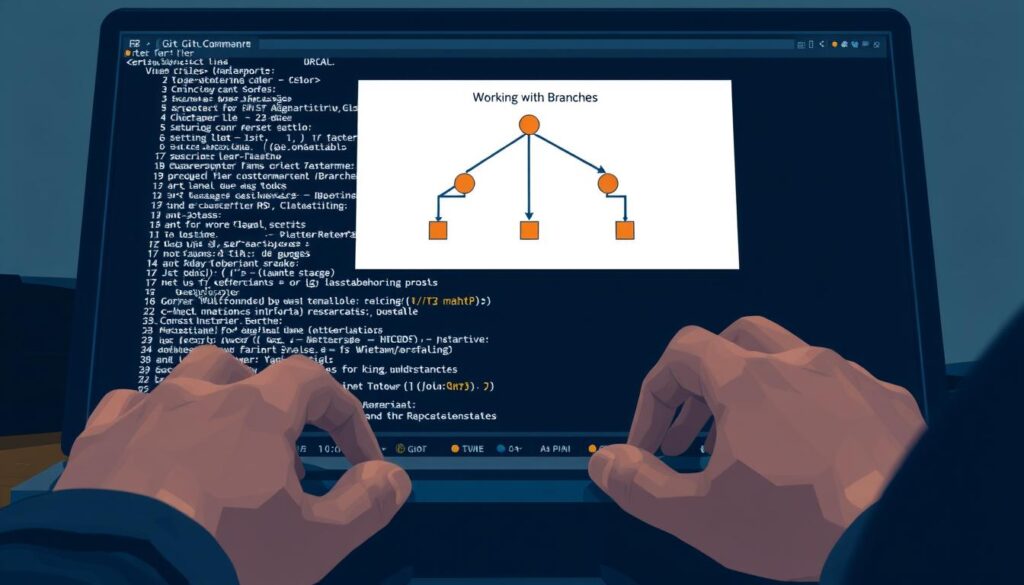
Learning these commands helps you manage your code and work with others. Use a git command line tutorial to learn more about branches and other essential commands.
Committing Changes
Committing changes is key in Git. It helps track changes and work together with others. In a git tutorial, you’ll see how often committing changes is good. It makes it easier to work together and avoid problems.
For git for beginners, knowing how to write good commit messages is important. It helps everyone understand what’s changed. You can use `git commit -m “(message)”` to add a message to your commit.
In a git tutorial, you’ll learn about different commit commands. For git for beginners, it’s crucial to know how to use them right. By following best practices, you’ll make your Git projects run smoothly.
| Command | Description |
|---|---|
| git commit -m “(message)” | Commits changes with a custom message |
| git commit -a | Commits all changes in the repository |
| git commit -a –amend | Modifies the most recent commit |
Undoing Changes
Working with Git means knowing how to undo changes. There are several git commands to help with this. A key one is reverting a commit, which makes a new commit that reverses the previous changes.
Another method is checking out files. This command brings files back to their previous state. You can also reset changes using git reset. This command removes files from the staging area but keeps the working directory the same.
- git revert: creates a new commit that undoes the changes made in the previous commit
- git checkout: reverts files to their previous state
- git reset: removes files from the staging area while leaving the working directory unchanged
Using these commands and a detailed git reference guide, you can manage changes easily. This makes your Git workflow more effective.
Remote Repositories
Working with git commands means knowing about remote repositories. A remote repository is hosted on a server. It lets many developers work together on a project. To start, you add it to your local repository with the git remote command.
Then, you use git fetch to get updates from the remote repository. And git push to send your local changes to the remote repository.
Git basics like git clone and git status help you create a local copy and check your repository’s status. The git log command shows a list of commits in order. This helps review changes. Learning these commands helps you manage remote repositories well and work with others.
For more on git commands and basics, check out the git cheat sheet page. It has a detailed list of important Git commands for managing remote repositories.
- git remote add: adds a remote repository to your local repository
- git fetch: retrieves updates from a remote repository
- git push: uploads local commits to a remote repository
By understanding and using these git commands, you can manage your remote repositories well. And work effectively with others on your project.
Viewing History
As a developer, knowing the history of changes in a project is key. It helps you see how the code has changed over time. In a git tutorial, you’ll learn how to view this history. This is vital for tracking changes and spotting issues.
When working on a project, the git log command is often used. It shows a list of all commits made. You get details like the commit message, author, and date. The git log –graph command lets you see the commit history in a visual way. This makes it easier to understand branch relationships.
Git also lets you view branch logs. This shows the history of changes in a specific branch. It’s useful for tracking a feature or bug fix. With the git branch command, you can manage different branches easily.
Being able to view history is crucial for using Git well. By following a git tutorial and practicing with the git command line tutorial, you’ll understand Git better. This helps you manage projects and work with others more effectively.
Stashing Changes
As a git for beginners user, understanding stashing changes is key. Stashing lets you save changes temporarily. This way, you can switch to another branch without losing your work. It’s great for projects where you often switch branches.
To stash changes, just use `git stash. It saves your uncommitted changes and goes back to the original state of your files.
A git reference guide can give you more details on stashing. Git doesn’t stash changes in untracked or ignored files by default. But, you can stash untracked files with the `-u` option. Use `-a` to stash ignored files too.
- `git stash save “message”`: saves changes with a message
- `git stash list`: lists all stashes created in the repository
- `git stash apply `: applies a stash without removing it
- `git stash drop `: removes a specific stash
- `git stash clear`: removes all stashes
These commands help you manage your stashes well. They make the most of Git’s stashing feature.
Working with Tags
Exploring Git, I’ve learned that tags are key. They mark important points in the code, helping track changes and team work. To add a tag, I use git tag [tag_name], which tags the current commit.
Any Git guide must cover tags. Key commands include git tag to see all tags, git tag -d [tag_name] to remove one, and git push [remote] –tags to share tags online. Here are some essential tag commands:
- git tag [tag_name]: Create a new tag
- git tag: List all tags
- git tag -d [tag_name]: Delete a tag
- git push [remote] –tags: Publish all local tags to the remote repository
Mastering tags helps me manage my code and work with others. Using Git commands, I can create, view, or delete tags. This keeps my code organized and current.
Collaborating with Others
Collaborating with others is key for developers. Git makes it easy to work together by forking and opening pull requests. This section will show you how to do it well. Having a git command line tutorial is crucial for this.
A git tutorial teaches you Git’s basics and how to team up. Git lets many developers work on one project at once. This is thanks to branches, which keep work separate.
Here are the main steps for working together with Git:
- Fork the repository to create a copy in your account
- Clone it to your machine with
git clone - Commit your changes with
git commit -m "Describe what you changed" - Push your changes with
git push origin <branch_name> - Open a pull request to merge your changes
By following these steps and using a good git command line tutorial, you can work well with others. Always use clear commit messages and push often to avoid problems.
Advanced Commands
Having a good git reference guide is key for managing your workflow well. We’ll look at advanced Git commands to boost your productivity. These commands help with managing branches, commits, and repositories.
Rebasing branches is an advanced command. It lets you reapply commits on another branch. This keeps your commit history clean and linear. Cherry-picking commits is another advanced command. It lets you apply specific commits from one branch to another.
Using these commands can make your Git workflow better. For instance, git rebase can update your feature branch to the latest master branch. This keeps your branch current and lowers merge conflict chances.
A detailed git commands list helps you understand Git’s options. Learning these advanced commands makes you more efficient in managing repositories and working with others.
Adding these advanced commands to your workflow improves your Git skills. Whether on a personal project or team work, knowing Git commands well is crucial for success.
Troubleshooting Common Issues
Working with Git means knowing how to fix common problems. This includes solving merge conflicts and checking for errors. Learning these skills helps you manage your Git workflow better and avoid issues. Knowing the basics of Git commands is key.
Common problems include merge conflicts when multiple developers work on the same branch. To fix these, use git merge and git status to find and solve conflicts. Also, use git status and git log to find and fix errors early.
Other ways to troubleshoot include using git diff to see changes and git reset to undo changes. Knowing these Git commands helps you deal with common problems in your workflow.
Some important Git commands for troubleshooting are:
- git status: checks the repository status
- git log: shows a list of commit history
- git diff: compares changes with the last commit
- git reset: undoes changes and changes the commit history
Using these Git basics in your workflow helps you solve problems quickly. This keeps your Git repository clean and organized.
Conclusion
Git is a powerful tool that has become the standard for version control in the software development industry. By practicing the Git commands and strategies in this guide, you’ll master Git. This will make your development workflow smoother.
Remember,
and
are ongoing processes that require patience and dedication. Keep exploring Git’s features, such as branching, stashing, and remote repositories. This will unlock their full potential. Also, consider using Git’s collaboration capabilities by contributing to open-source projects or working with a team.
With the knowledge and techniques from this article, you’re ready to manage your codebase. You can track changes and collaborate with others using Git. Embrace version control and let Git be your trusted companion on your software development journey.
FAQ
What is Git?
Why is version control important?
How do I install Git on my system?
What are the basic Git commands I should know?
How do I work with branches in Git?
How do I undo changes in Git?
How do I work with remote repositories in Git?
How do I view the history of my project in Git?
How do I stash changes in Git?
How do I work with tags in Git?
How do I collaborate with others in Git?
What are some advanced Git commands?
How do I troubleshoot common issues in Git?
Source Links
- https://about.gitlab.com/images/press/git-cheat-sheet.pdf
- https://www.geeksforgeeks.org/git-cheat-sheet/
- https://www.digitalocean.com/community/cheatsheets/how-to-use-git-a-reference-guide
- https://www.scaler.com/topics/git/git-cheat-sheet/
- https://phoenixnap.com/kb/git-commands-cheat-sheet
- https://www.atlassian.com/git/tutorials/install-git
- https://intellipaat.com/blog/tutorial/devops-tutorial/git-cheat-sheet/
- https://www.hostinger.com/tutorials/basic-git-commands
- https://confluence.atlassian.com/display/BitbucketServer/Basic Git commands
- https://www.ionos.com/digitalguide/websites/web-development/git-cheat-sheet/
- https://www.freecodecamp.org/news/git-cheat-sheet/
- https://www.gitkraken.com/learn/git/commands
- https://developers.redhat.com/cheat-sheets/git-cheat-sheet
- https://sapling-scm.com/docs/introduction/git-cheat-sheet/
- https://www.keycdn.com/blog/git-cheat-sheet
- https://www.atlassian.com/dam/jcr:8132028b-024f-4b6b-953e-e68fcce0c5fa/atlassian-git-cheatsheet.pdf
- https://www.freecodecamp.org/news/git-cheat-sheet-helpful-git-commands-with-examples/
- https://last9.io/blog/your-go-to-git-commands-cheatsheet/
- https://www.git-tower.com/learn/git/commands/git-remote
- https://medium.com/@kuldeepkumawat195/git-commands-cheat-sheet-the-most-commonly-used-commands-ffaba0825da2
- https://initialcommit.com/blog/Git-Cheat-Sheet-Beginner
- https://webreference.com/cheat-sheets/git/
- https://cheatography.com/itsellej/cheat-sheets/git-commands/
- https://www.atlassian.com/git/tutorials/saving-changes/git-stash
- https://git-scm.com/docs/git-stash
- https://dev.to/ruppysuppy/git-cheat-sheet-with-40-commands-concepts-1m26
- https://github.com/Sunil-Pradhan/git-cheat-sheet
- https://dev.to/hkp22/git-cheat-sheet-a-beginners-guide-to-git-commands-and-best-practices-1geb
- https://cloudyuga.guru/blogs/git-cheat-sheet/
- https://www.strongdm.com/blog/linux-commands-cheat-sheet
- https://dev.to/maxpou/git-cheat-sheet-advanced-3a17
- https://www.serverwala.com/blog/linux-commands-cheat-sheet-advanced-techniques
- https://gist.github.com/bradtraversy/518b1bd6fe26c83c3a184b3a98a2fcd0
- https://dev.to/kafeel_ahmad/git-like-a-pro-the-ultimate-cheat-sheet-for-developers-3a87
- https://www.plesk.com/blog/various/git-commands-cheat-sheet/